


How it works
- You askIn plain words, like a message
- AI searchesEvery shop at once: prices, sizes, stock
- You chooseThe order goes to the shop only after your «yes»
Ask like you'd ask a friend

«Cat food under 500 lei, what do you suggest?»
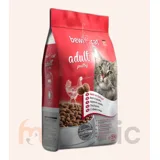
Bewi Cat Adult, 5 kg440 leimicamic.md

«A living room sofa under 10,000 lei»
Lugo Dark Grey sofa3 800 leimobilie.md

«Something festive for the home»
Christmas stocking «Snowman»115 leinewmarket.md

«A greenhouse with watering for the garden»
Greenhouse SZ-TG12325 with watering7 400 leinewmarket.md
Start in a minute
- Press «Try it free»: Claude opens
- Press Connect, then «Continue without signing in»
- Ask for what you need, in your own words
- Prices straight from the shop
- Orders only after your «yes»
- We never see your chat
- Free

Own a shop?
Shoppers already ask AI. Let it answer them with your products.
- A shop on ECOM shows up in the AI assistant by itself
- Orders land in your admin
- Run it in words: «show today's orders»
Shops on ECOM


In detail: connecting, the plugin, examples, help
ECOM in Claude and ChatGPT
The online shops of Moldova in one connector: find a product in every ECOM shop at once, compare prices, read the details and order it, right from the chat. Shop owners can run their shop the same way.
What it does
- Search the products of all ECOM shops at once: price, availability, link and the shop that sells it.
- Product details, specifications, delivery, payment and return terms of each shop.
- Order as a guest: the assistant shows you the exact summary first and places the order only after you agree; the shop confirms it by phone, you pay on delivery or by transfer.
- Or open the cart on the shop's website to pay online, buy on credit or use a promo code.
- Check the status of an order you placed.
- Create your own online shop: you get an e-mail link, set your password there (never in the chat) and the shop opens with a ready design.
- Shop owners, with
https://ai.ecom.mdas their own connector: orders, products, categories, design, content and settings of their shop.
How to connect
Claude: the button above, or Settings → Connectors → Browse connectors → ECOM → Connect (or «Add custom connector» with the address https://ai.ecom.md/mcp/app). On the ECOM page choose «Continue without signing in».
ChatGPT: Apps → search for ECOM → Connect, then «Continue without signing in».
Shop owners: add https://ai.ecom.md as a custom connector and sign in with your ECOM shop account: your shop from the chat, and the search of all shops stays.
ECOM plugin for owners
The same server plus ready skills (add a product, prices and stock, today's orders, change the design, pickup points, storefront check, photos, AI media, analytics, site move), each switched on separately.
- Claude Code:
/plugin marketplace add https://ai.ecom.md/plugin/marketplace.json, then/plugin install ecom@ecom. - Claude app: download ecom.zip → Customize → Plugins → Add → Upload plugin.
- Codex: download ecom-marketplace.zip, unzip,
codex plugin marketplace add ./ecom-marketplace, install ECOM in/plugins.
Try asking
- «Find dry food for an adult cat under 500 lei in ECOM shops and compare the three cheapest.»
- «Which ECOM shops sell dog toys? Show what is in stock.»
- «Show the details and the delivery terms of this one, then order it with delivery to Chișinău.»
- «What is the status of my order 12345? The phone is 069123456.»
- «I want my own online shop for flowers: create it for me.»
- Owners: «Show today's new orders in my shop» or «Hide the products that are out of stock».
If something does not work
- No results: try other words, the model name, or Romanian or Russian; refine instead of paging.
- «Too many requests»: the catalogue is protected against bulk copying; wait a little and search more precisely.
- An order is placed only after you confirm its summary; the shop then calls you. A question about an order goes to the shop (its contacts are in the answer).
- Sign-in fails: check the e-mail and password of your ECOM shop account, or connect again.
- To disconnect, remove ECOM in the assistant's settings. Owners also see and revoke connections in the ECOM admin under «My account».
Support
Write to info@ecom.md. Service by ALSODEV SRL.